

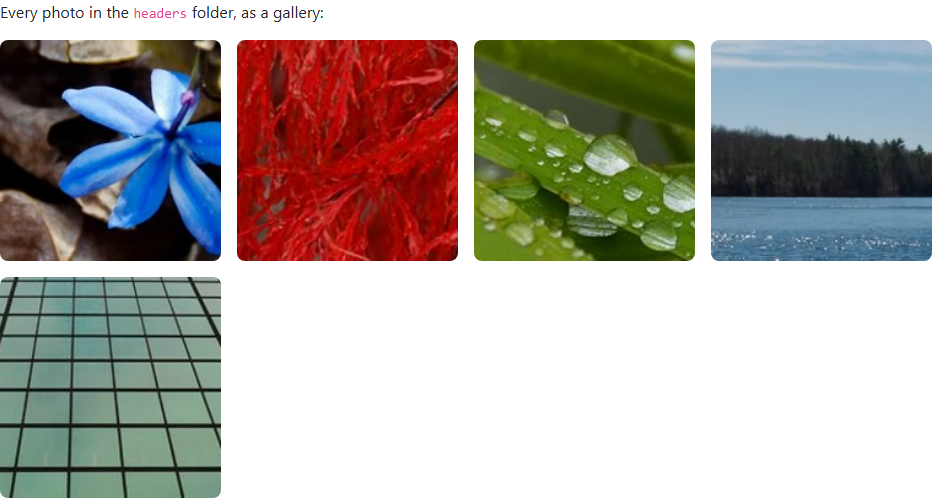
Cybersalt Auto Gallery is a paid Joomla 5 / 6 extension that turns a folder of images into a responsive gallery with one shortcode. Put {auto-gallery} in an article or a Custom module, and it shows every image in the matching folder as a Bootstrap 5 grid, with a lightbox when a visitor clicks. Add or remove images by uploading files to the folder. There is no gallery to rebuild and nothing to re-save in Joomla.
Why this exists
Most Joomla gallery extensions keep their own list of images: you create a gallery, upload into it, and sort it inside the component. That is fine for one or two galleries. It gets slow when every page on the site needs its own set, such as one per artist, product or property. Auto Gallery was built for a music site with hundreds of artist pages. Each page finds its own folder from its address, so one shortcode in one module covers every page, and keeping a gallery up to date is just a matter of putting files in a folder.
How it works
It's a single content plugin. The {auto-gallery} shortcode finds its images in one of two ways.
| Mode | How the folder is chosen |
|---|---|
| From the page address | With no folder named, the last part of the page address picks the folder, sorted by first letter. On /artists/bob-marley the gallery shows the images in B/Bob-Marley/ inside your gallery root folder. Upper and lower case in the folder name don't matter. |
| A folder you name | {auto-gallery folder="events/2026-picnic"} shows the images in that folder, relative to the gallery root. |
Either way, a gallery can only read from inside the root folder set in the plugin settings. A shortcode can't point it anywhere else.
What it can do
| Feature | What you get |
|---|---|
| Responsive grid | Square thumbnails in a Bootstrap 5 grid. The column classes are a setting, so you choose how many images sit side by side on phones, tablets and desktops. |
| Lightbox | Clicking an image opens a larger view you can swipe or arrow through. The lightbox script (GLightbox) ships inside the extension, so pages make no request to a third-party CDN. It can be switched off site-wide or per gallery. |
| Captions | Shown in the lightbox and used as the image's alt text, made from the file name, so stage-at-dusk.jpg becomes "Stage At Dusk". |
| Filters | Show only files whose names start with a prefix (prefix="pi-"), or only some file types (extensions="jpg"). Images are sorted by file name. |
| Sizing and corners | Corner rounding as a setting. Thumbnail minimum and maximum sizes and image width and height per shortcode, for example thumb_max_w="150px". |
| One gallery per page | once="1" stops the same gallery appearing twice when the shortcode sits in more than one module on a page. |
| Empty folders | Show a short "No images found" note, or nothing at all. |
| Languages | The settings come in 17 languages: English, Czech, Dutch, French, German, Greek, Italian, Japanese, both Norwegian written forms, Polish, Brazilian Portuguese, Russian, Simplified Chinese, Spanish, Swedish and Turkish. |
Installing it
You'll need Joomla 5 or 6 and PHP 8.1 or later.
- Purchase access with the button above, then log in and download the ZIP. One purchase covers as many of your sites as you like.
- In Joomla admin, go to System → Install → Extensions and upload the ZIP.
- Go to System → Manage → Plugins, open Content - Cybersalt Auto Gallery, enable it, and set Gallery Root Folder and Gallery Root Web Address to the folder that holds your galleries.
- On the plugin's Pro Activation tab, enter the email address of your cybersalt.com account and save. New versions then arrive through Joomla's own System → Update → Extensions screen. Galleries work whether or not a site is activated. Only the updates need a current membership.
Using it
- Upload images into a folder inside your gallery root, using Joomla's Media manager or FTP.
- Add
{auto-gallery folder="your-folder"}to an article, or{auto-gallery}to a Custom module that shows on pages whose address matches a folder name. - To see which folder a gallery is reading from while you set things up, turn on Show Debug Path. Turn it off again before visitors see it.
Every setting can also be changed for one gallery in its shortcode, for example {auto-gallery folder="team" lightbox="0" col_classes="col-6 col-md-4"}. The gallery root folder and the allowed file types are the exceptions: those come from the plugin settings only.
Permissions and security
The plugin only lists image files that are already public in your site's folders. It never shows anything outside the gallery root, even if a shortcode asks it to, and it never lists file types the settings don't allow. Size and corner values are checked before they reach the page, so a shortcode can't add other styling.
Open source
Cybersalt Auto Gallery is licensed under GPL-2.0-or-later, the same license as Joomla itself. The full source is in the ZIP you download.





Add comment